Theme
The Theme section lets you modify the colors and images of your
Colors
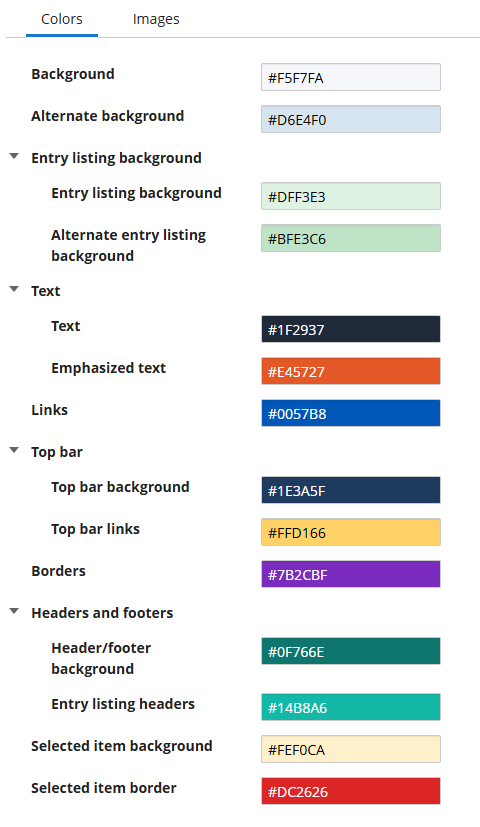
In the Colors tab, you can provide custom colors for your Public Portal website, allowing you to customize it to your own color scheme. For example, a university's website could be configured to match the school's colors. Most elements on the page can be customized in this way, including the page background, text and links, the top bar, borders, headers, and footers. To customize a color, select the option box next to the element you want to change. You can then use the color picker to select a color, or provide a hexadecimal color code. The background of the option box will change to the selected color, allowing you to see at a glance what colors have been configured.
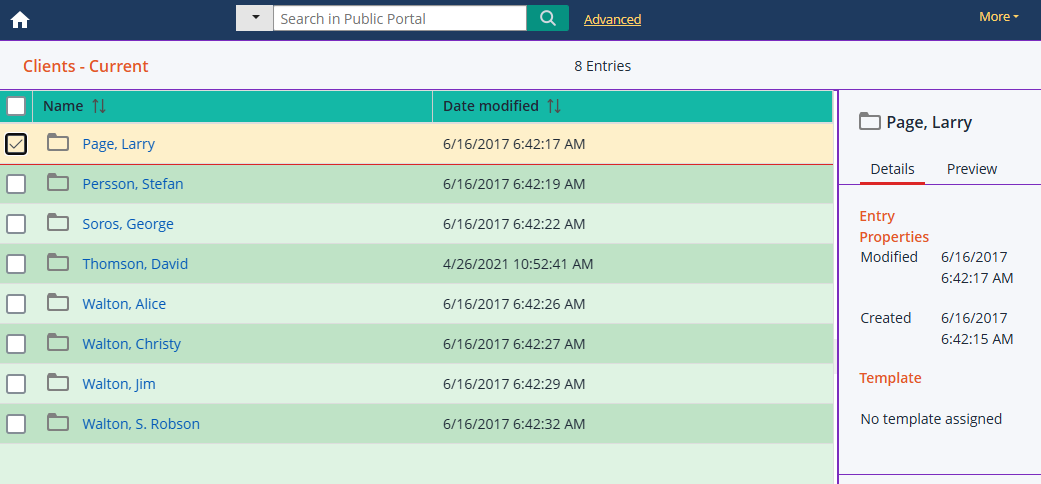
You can preview the selected colors on the website by selecting the Preview link at the bottom. You can also select Reset to default colors to restore the
 See example color selections and how they appear in the preview
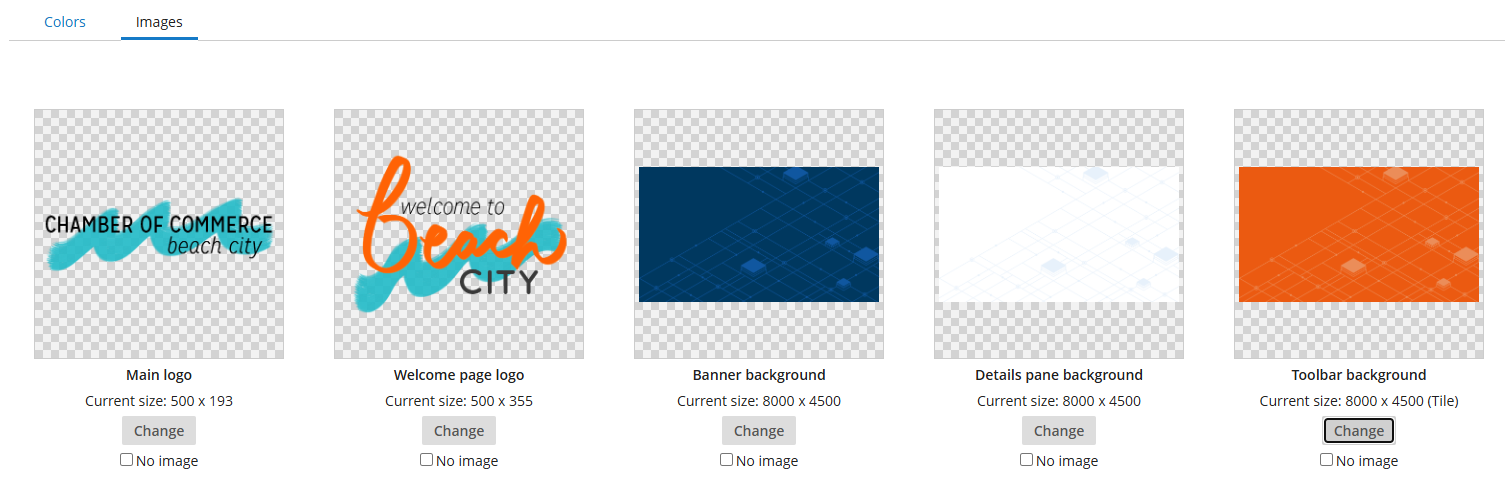
Images
In the Images tab, you can add custom images to your
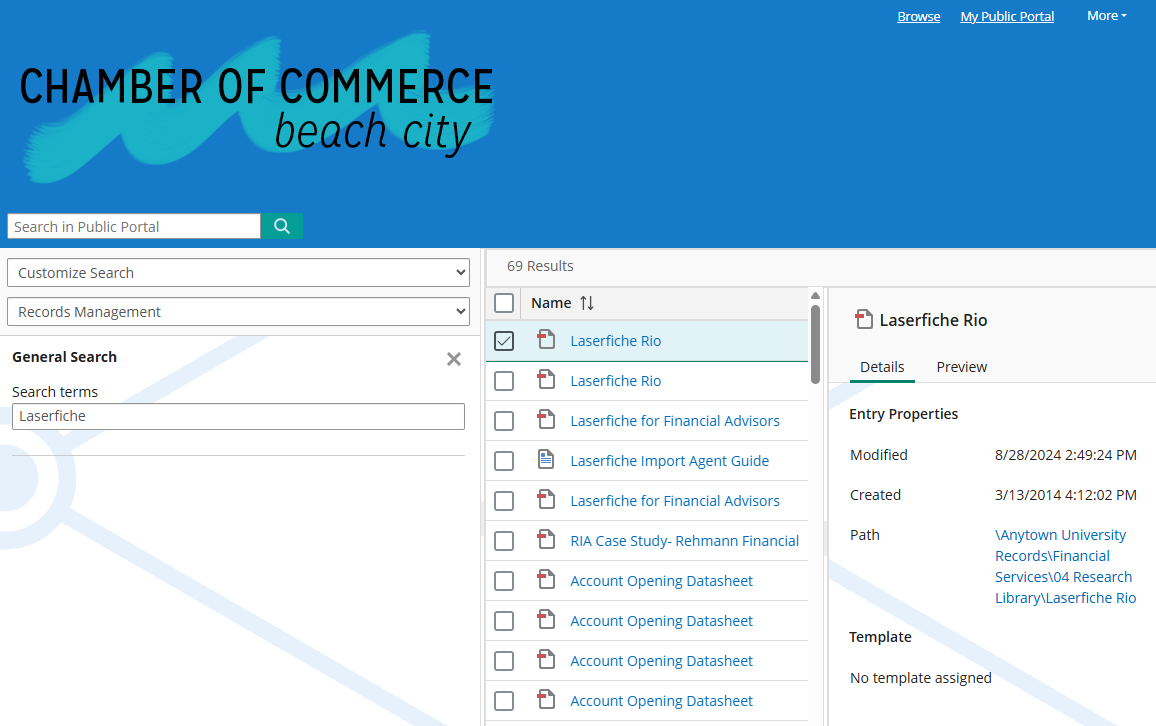
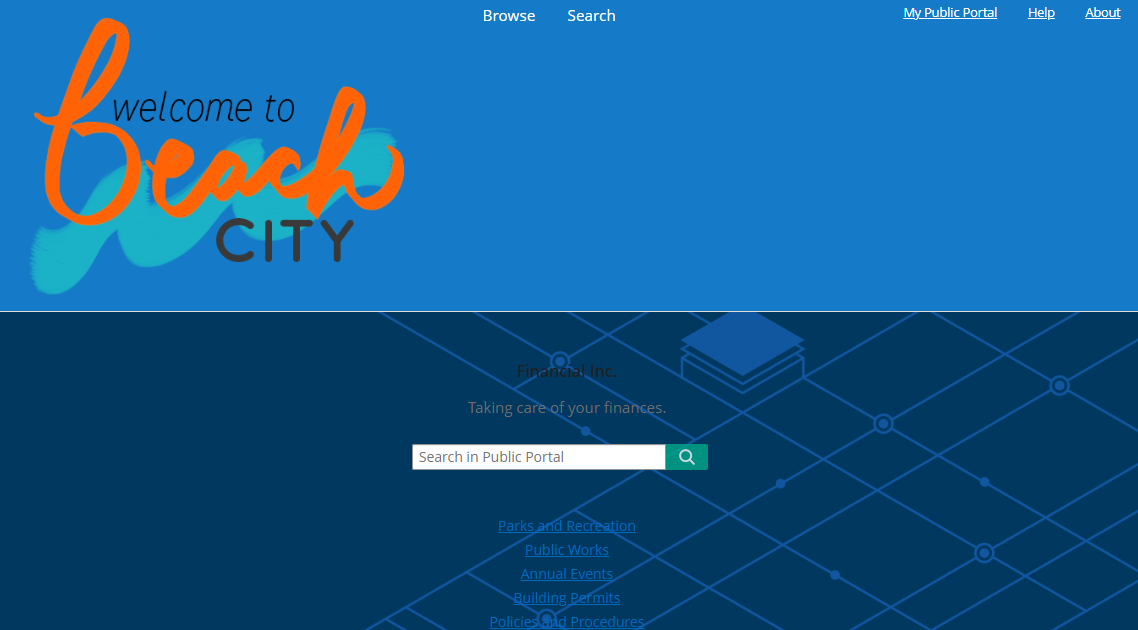
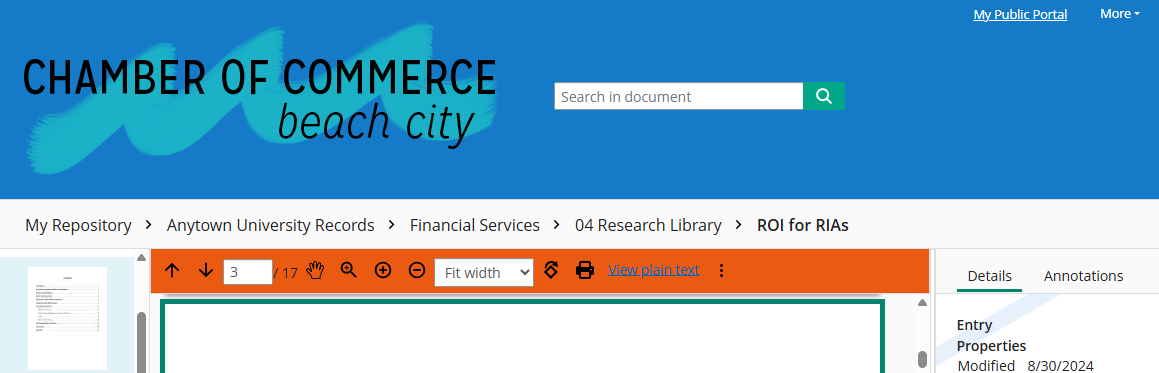
You can preview your images on the website by selecting the Preview link at the bottom. You can also select Reset to default images to restore the defaults.
See example image selections and how they appear in the preview